LiveKaatha on every device
One account, one set of books. Sign in on the web, install the desktop app on Windows or Mac, or carry the shop in your pocket. Whatever you record on one device is in the books on all of them.
Windows 10 or newer, 64-bit · macOS 12 or newer · Android and iPhone coming soon
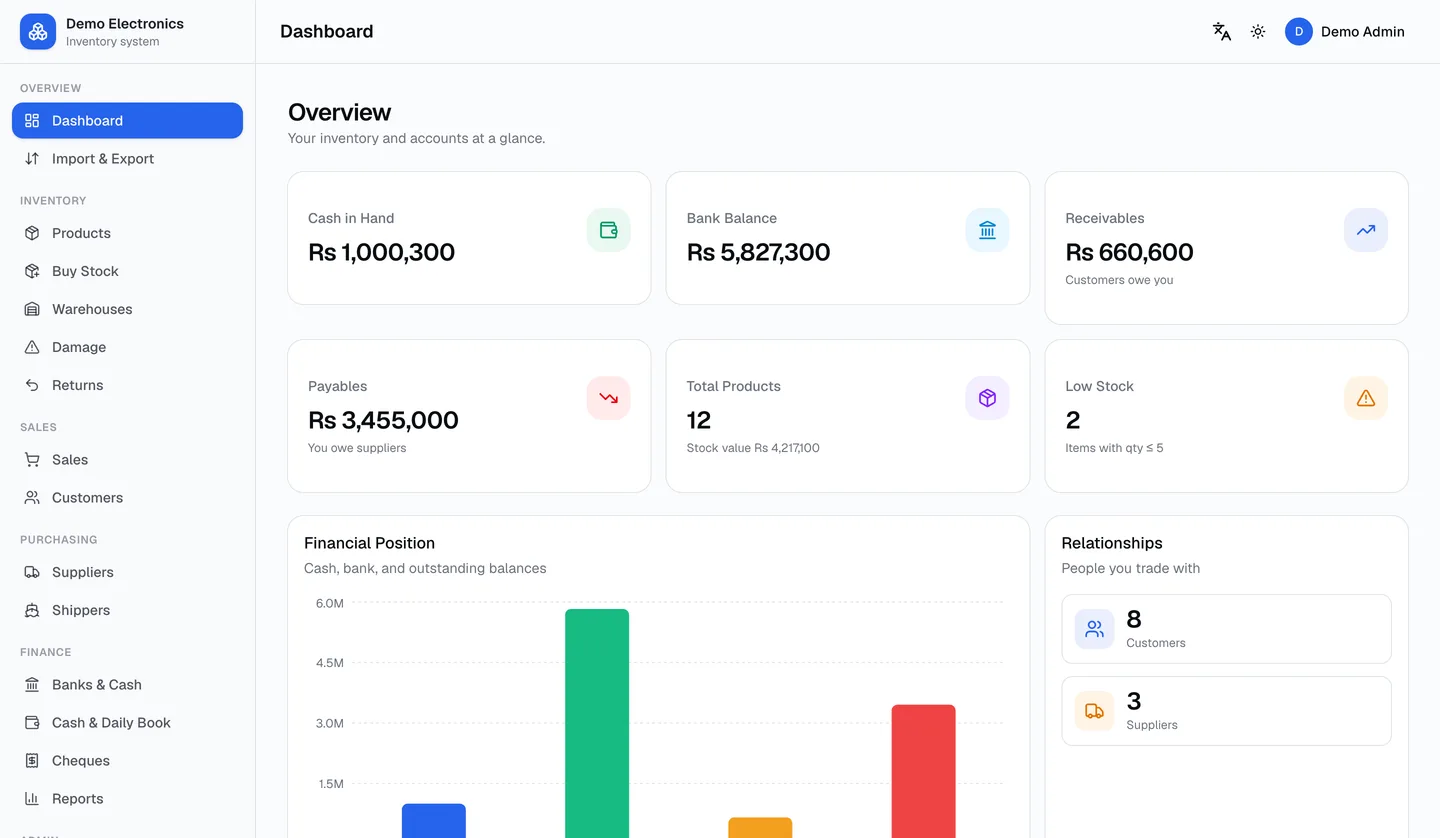
- Ahmed TradersSamsung A15 × 4Rs 176,000Cash
- Bilal AutosBrake pads × 12Rs 38,400Credit
- Noor MobilesCharger × 30Rs 21,000Bank
The same app, wherever you work
Install the desktop app on the shop computer, use the browser anywhere, and keep the phone for the road. Every version signs in to the same account.
Web app
Nothing to install. Sign in from any computer, tablet or phone browser.
Chrome, Safari, Edge or Firefox
Windows
A desktop app that opens straight onto your shop. Prints invoices and barcode labels.
Windows 10 or newer, 64-bit
LiveKaatha-Setup.exe
macOS
The same desktop app for Mac. Drag to Applications and sign in.
macOS 12 or newer
LiveKaatha.dmg
Android
Sell, take payments, scan barcodes and check your cash from your phone.
Android 8 or newer
iPhone & iPad
The LiveKaatha app for iPhone and iPad.
iOS 15 or newer
One account. Every device. The same books.
Your login works on the web, in the desktop apps and in the mobile apps. There is nothing to sync and nothing to export: every device reads and writes the same ledgers.
- The same email and password sign you in everywhere.
- A sale entered on the phone is in the books when you open the desktop.
- Managers get the same permissions on every device.
- Your logo, colour, language and modules follow you to each device.
Up and running in a few minutes
Pick your device. If anything gets in the way, message us and we will walk you through it.
A normal installer. It takes about a minute.
- 1Download LiveKaatha-Setup.exe and run it.
- 2If Windows SmartScreen shows “Windows protected your PC”, click More info, then Run anyway.
- 3Follow the installer. LiveKaatha is added to the Start menu and the desktop.
- 4Open LiveKaatha and sign in with your account's email and password.
Why does Windows show a warning? The installer is not yet code-signed, so SmartScreen warns once on first run. The installer adds nothing to your PC except the app itself.
Not sure where to start? Start in the browser.
No download, no set-up. Sign in, and add the desktop or phone app later — your books will be waiting.